Entering data manually is relatively rare. Most data is electronically recorded on the computer in survey applications or laboratory software. These existing data files can be imported into the PSPP data editor. Using existing electronic files avoids the tedium and errors that might occur with manual entry.
If it is a PSPP or SPSS file (.sav file extension), it's as simple as opening it in PSPP. Use the file > open command or control-o keystrokes to begin.
For other data, an importing step may be needed. The File > Import data command starts a wizard feature that steps you through the process.
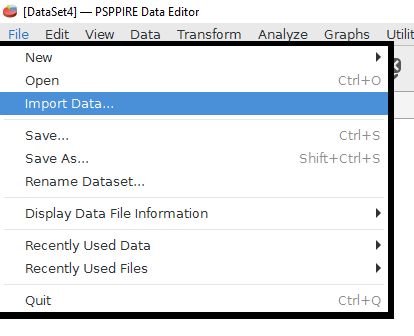
The first step is to select the file that will be imported. Comma separated values (.csv) are a popular type in which field is separated by a comma.
A critical step is to provide information to the software about possible variable names. CSV files often have variable names in the first row. This example has checked the box stating the row above the highlighted row contains variable names. Failure to do this step may often lead to odd import problems. The software may not know how to handle situations when the first row is strings and the rest is numerical data unless we inform the software about the structure of our data file.
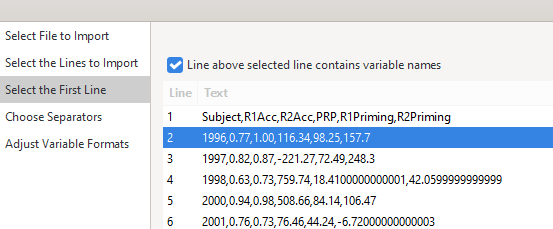
The other steps in the import wizard are straightforward. Just follow the directions. If separators other than commas are used this needs to be indicated. Adjustments to variables are also possible.
Home | Start | Variables | Data | Descriptive | Relationship | Inferential | Effect size | Advanced | Video
This work is licensed under a Creative Commons Attribution 4.0 International License that allows sharing, adapting, and remixing.