Data analysis in PSPP typically involves two steps.
The analyze menu offers many choices. Some of these are groups into related analyses, such as descriptive statistics.
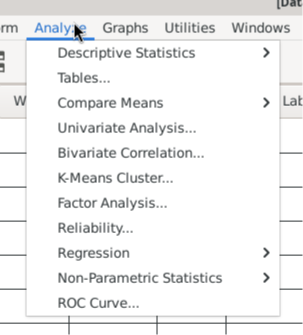
After selecting an analysis PSPP will need more information. The software doesn't magically know which variables you want to use when you want to do an analysis or command. The user must input which variables the analysis must be done upon.
PSPP typically gives you a list of variables on the left in a dialog box. You must choose the variables that you want to use by moving them to a field in the center or right of the dialog box that is often called Variables.
This example is for the sort command in the data menu. It shows all the variables in a list on the left. The choices go into the Sort By field.
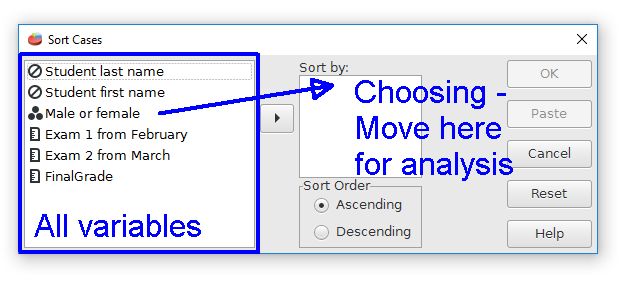
The variables can be chosen in two ways. One way is to click on the variable name on the left, then drag it to the empty variable field on the right. Another method is to highlight the variable that you want, then use the little arrow button between the fields to move the variable.
Home | Start | Variables | Data | Descriptive | Relationship | Inferential | Effect size | Advanced | Video
This work is licensed under a Creative Commons Attribution 4.0 International License that allows sharing, adapting, and remixing.