While PSPP might give an initial impression of being like a spreadsheet, this is just a superficial similarity. PSPP only uses numbers, letters, words, or other data in the data view. There are no formulas entered into the cells in the data view.
This screenshot shows the data view.
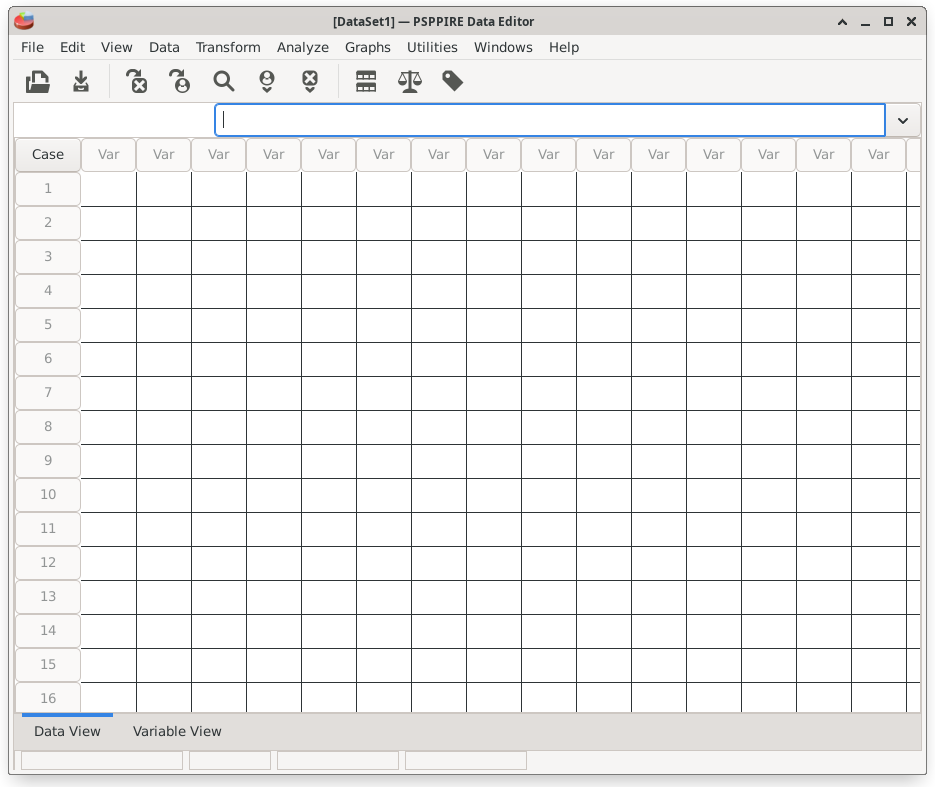
The data view is where the data will be held. Typically this will have numbers and strings. There are no cells with formulas.
The next screenshot shows the data editor with the variable view.
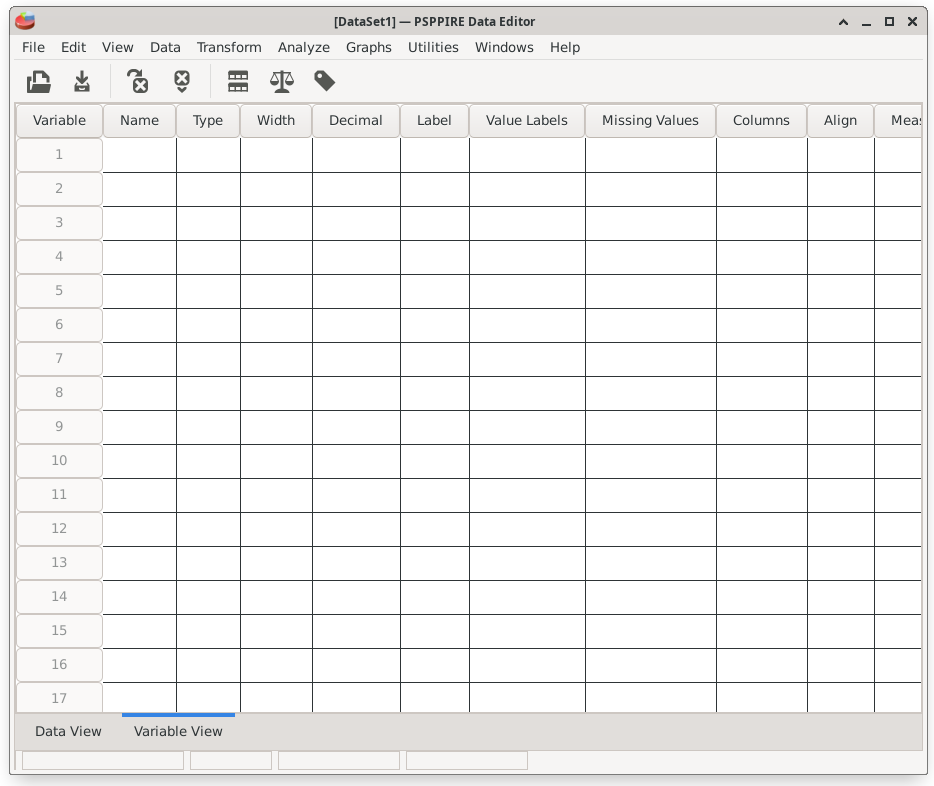
The variable view is the default that you will see when you start PSPP. The purpose is for setting varible configurations. The columns in this view represent the variable attributes that can be given. Unlike spreadsheets, PSPP gives users much more control over the details of variables.
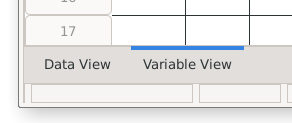
In the lower left corner, there are tabs for the data view and the variable view. These tabs or links work like the worksheets in a spreadsheet. Clicking on these will switch between the data view and the variable view.
Home | Start | Variables | Data | Descriptive | Relationship | Inferential | Effect size | Advanced | Video
This work is licensed under a Creative Commons Attribution 4.0 International License that allows sharing, adapting, and remixing.