The next critical variable setting is type. This will configure the software for data that may be characters (strings) or numerical data. It also specifies data that may be in special formats, like dates. This feature is comparable to formatting the data type of a cell in a spreadsheet.
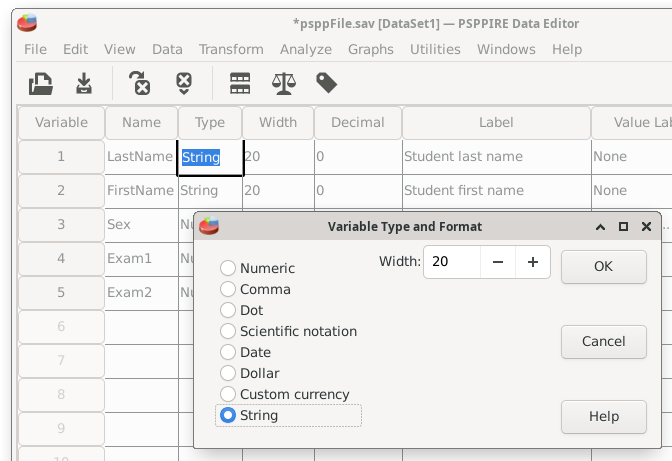
The most commonly used data forms would be numeric (for numbers) or strings (for alphabet characters, like someone's name). Numeric, which is the default, will be fine for most of our work. Strings are for data that are words, like "married", "single", or "divorced." There are also special settings available for scientific notation, dates, and currencies.
This "LastName" example above is set to string because we will be entering student names into this field. In contrast, the sex and exam variables in this example are set to numeric so these fields can receive numbers.
The different forms of data also have options. These options customize the characteristics of the variable. Width is how many characters will be allowed. To illustrate, the name variable is large for this example because some people have long names.
The main variable view of the data editor also has some additional fields for editing the data field width, the decimal points displayed, and the column display width.
Specifying that data type for each field can be helpful for preventing data entry errors. For example, imagine a situation where a variable is set to numeric. Accidentally pressing a letter key, like "t", will result in no data entered because this field can only accept numerical values.
Home | Start | Variables | Data | Descriptive | Relationship | Inferential | Effect size | Advanced | Video
This work is licensed under a Creative Commons Attribution 4.0 International License that allows sharing, adapting, and remixing.