- Posted on
The Americans with Disabilities Act (ADA) standards for online video require closed captions. Manually adding the captions is possible, but it is challenging and time-consuming. Fortunately, there are some built-in Brightspace features that make it easy to add captions. The following instructions and example are from the discussion tool feature.
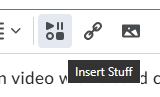
Getting started: Create a discussion thread. Position the cursor to the desired location for the video. Choose the "insert stuff" icon from the editor toolbar.
Create the video: Chooose "add video note." Use "new recording" to make a video. If needed, allow access to your camera and microphone. Click the "next" button to accept the video and proceed to the final steps.

Add processing options: Add a title and a description. Key steps: Select the audio language from the drop-down menu and check the "automatically generate captions from audio" radio button.

Processing: Brightspace will state "The file is currently being processed." Wait until processing is finished, then preview the video. Press the "insert" button to place the video into your discussion post. Click the "post" button to make the newly created video public on the discussion board.
Use: The captions can be turned on or off via the setting gear icon in the lower right corner.

Brightspace provides a list of languages that can be used with this feature.
This blog post from Xavier University describes another method for existing videos: Audio/Video Note Editor from Admin tools.