Gary Fisk's Blog

PowerPoint

All posts tagged PowerPoint by Gary Fisk's Blog
  • Posted on

    Note: This was first published on October 20, 2023.

    Complex figures can be overwhelming to an audience. The issue: where should one begin? A similar problem is describing processes that have multiple steps. A numbered list of the stages could be made, but lists tend to be boring.

    A solution is to use basic "appear" animations to make the steps of the process appear in a sequence. This helps the audience to digest the complexity. The presentation of stages one-by-one feels more intuitive.

    The following link has an example that shows both a complex image and a step relationship. This is the Wernicke-Geschwind Model of language processing. The graphic is an open-license illustration of the brain with key brain areas highlighted. The animation steps the audience through the key stages of processing language.

    WernickeGeschwindLanguageModel.pptx

    License: Creative Commons 4.0 attribution

  • Posted on

    Note: This was first published on October 20, 2021.

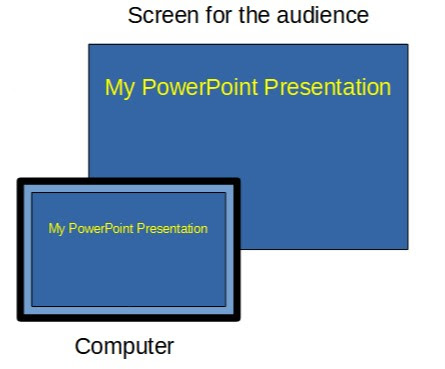
    PowerPoint has a special screen for presenters that shows the slides plus a variety of control buttons and a clock. Accessing this feature requires an extended screen setting. Unfortunately, the concept of an extended screen is difficult to understand and explain. This confusion is understandable because the extended screen is invisible!

    The following is an explanation of the difference between duplicate vs. extended screens.

    The duplicate setting shows the same presentation on the presenter’s computer and the audience’s screen. Duplicate could be understood as the standard mode of operation. Duplicate screen illustration: The computer and audience views are the same.

    Think of the extended screen as being an imaginary monitor positioned just to the right of the computer display. Presenters can move windows (see video in green) to the extended view by dragging them to the right, from the computer desktop to the invisible extended display. Extended screens can be understood as an enhanced display space just for the audience. The extended screen is an imaginary screen located to the right of the computer display. Diagram that illustrates how the extended screen works

  • Posted on

    Note: This was first published on March 22, 2021.

    Like many educators, my pandemic classroom presentations have been split between in-person, classroom students and students who are watching online through video technology. The challenge is that interacting with the online audience is much harder than the classroom. My technology shares the screen (a PowerPoint presentation), but does not provide a live video during the presentation when the screen is shared. Unfortunately, watching a PowerPoint presentation with just a voice is a bit dull.

    An easy way to make the online presentations a bit more interesting is to use the annotation tools during the presentation. The tools are used to add or mark-up the existing presentation. The online students get to watch the presentation growing in a more dynamic way. It's like turning the presentation into a basic chalkboard, a time-tested teaching tool.

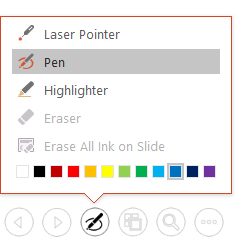
    The annotation tools are available by hovering the mouse over the lower left corner of the presentation. These features can also be accessed by keystrokes: control-p for pen and control-l for laser pointer. Here's the pop-up menu:
    Annotation pop-up menu appearance

    Marking up the slides has been fun and dynamic when done live. On this slide, I added that a stage-based theory of human growth has step-like qualities by drawing the following on the screen with the mouse while I'm talking. This is an example of a PowerPoint slide with annotations that show a visual relationship. The annotated slides can be saved, exported to a pdf file, and shared with students.

    A related issue is that the people watching a shared computer screen at home can't see a laser pointer on the classroom screen. So, I've stopped using the laser pointer in my wireless presentation remote. Instead, the PowerPoint laser pointer is used so everyone - home and classroom - can see it.

    These built-in features are an easy way to bring at least a tiny bit of extra life to a static, shared screen presentation. They are very useful, yet underappreciated. Give it a try in your next online presentation.

  • Posted on

    Note: This was first published on March 5, 2021.

    Transparency is a hot idea in higher education. The idea has multiple dimensions, but here we will focus on the essential "transparent" component: The need to clearly communicate the purpose of course activities to students. Why are we doing this assignment? What is the motivation? How does the current assignment connect to ideas that have already been covered? What skills will students gain by performing this task? Unfortunately, these important motivation-related questions are often not addressed. These critical ideas may be assumed by the professor rather than being explicitly stated.

    The transparency movement has focused largely on assignments, with tilthighered.com having numerous examples. My contribution is that the transparent idea could be easily extended to PowerPoint presentations. The typical classroom PowerPoint presentation has excellent facts and information. The problem is a missing 'why?' explanation. The importance or purpose might be obvious to faculty experts, but novice learners may be largely unaware of why they should care about a particular topic.

    The introduction is an ideal time to address 'why' questions. The motivational questions - why should we care? - should be addressed before launching into the facts and key terms to properly prepare students. The possibilities include ...

    • The question: Have you ever wondered why people do/think ______? Let's explore why this occurs.
    • Establishing context: How does today's topic relate to the ideas from the last course meeting? This is how today's topic fits into important course goals.
    • Personal relevance: Today's topic will be essential for your life or career in this way. This presentation will help you gain an expert understanding that is useful for _____.
    • History: A long-standing concern in our field/society is ______. Today, we will investigate three different attempts to address this issue.

    The 'why' possibilities may be nearly infinite. The general aim is to address why anyone should care or find this topic interesting. A second important goal is helping students form connections between today's topic and previous topics or upcoming topics.

    Like transparent assignments, taking just a few minutes at the beginning of a presentation to address these 'why?' questions can have a big impact. It is not necessary to overhaul everything in a PowerPoint presentation to gain the benefits of transparency. One or two slides at the beginning to promote motivation and establish context can be helpful to novices.

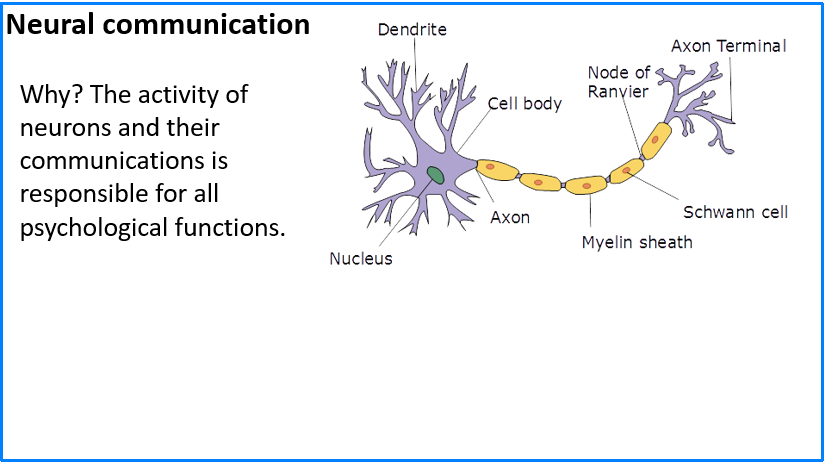
    The transparent opening can even be a part of the slide design. Norman Eng has suggested a one sentence takeaway or mission statement. Here's an example from an opening slide in my Introductory Psychology course.

    An introductory slide with a one sentence purpose statement

    I hope this idea has been helpful. Please consider sharing good ideas for transparent openings in PowerPoint presentations.

    Image credit https://commons.wikimedia.org/wiki/File:Neuron.svg User: Dhp1080, CC BY-SA 3.0 http://creativecommons.org/licenses/by-sa/3.0/, via Wikimedia Commons

  • Posted on

    Note: This was first published on February 2, 2021.

    The Impact of Multi-Media Presentation Format: Student Perceptions and Learning Outcomes by Katherine Moen, University of Nebraska Kearney (Note: This is the second post in a series of PowerPoint-related presentations from the Psychonomic 2020 meeting.)

    An important issue for educators is the value of text vs. images in PowerPoint presentations. Do people learn best from words or images? How many words are too many words? Academic PowerPoint presentations tend to be text-heavy. On the other hand, images may be information-rich ('a picture is worth a thousand words') in ways that add a visual-spatial component to the spoken presentation.

    This in-class study compared students who received standard PowerPoint slides (text plus small images) to student who received slides that were mostly images. The picture-based group had a small (about 5%) increase in exam scores. Student interest and engagement was about the same in both groups.

    Commentary: This is a good illustration of how information-rich instructional graphics can be superior to text-focused slides. The results are consistent with Mayer's redundancy principle: Providing text on the slide that is essentially the same as the spoken presentation does not facilitate learning. Perhaps image-based slides require students to pay more attention to the spoken presentation, which then benefits learning. When the PowerPoint is mostly images, students could be more actively engaged or processing the lecture deeper than simply copying information from slides.

  • Posted on

    Note: This was first published on September 25, 2020.

    Students often feel a compulsive need to write down the text from PowerPoint presentations. This is modern note-taking: a simple verbatim copy of the presented text. Their aim is to capture information that might be on future exams and store this information for future studying. The downside is that mere copying is a very passive learning approach and a distraction from what the teacher is actually saying.

    This week, I witnessed a new form of text copying that was surprising. (It was new to me, anyway.) It may be informative to people who teach with PowerPoint.

    The setting was a peer-observation of another faculty member. I was seated in the back corner of the classroom. The PowerPoint presentation had numerous key terms with complete definitions. The slide deck was available both on screen and online through the learning management system. Two students with laptop computers were seated near me with screens that could be easily seen. They had the learning management system open with the presentations loaded up. They seemed to be working hard on taking hand-written notes. So far, so good. The initial appearance was standard, college-level educational practices.

    The surprising part was that the students were actually two or three slides ahead of the presenter! They were copying information from the online PowerPoint because the amount of presented text was apparently too much to copy down in real time. Their solution was to copy text from the online presentation in advance of the actual presentation. Sadly, the spoken presentation was being ignored.

    This copying ahead of the presentation is a misguided learning strategy. It could be prevented by not providing the PowerPoint files online, but this solution misses a bigger problem. The more critical issue is that providing numerous key terms and definitions via a PowerPoint presentation is overwhelming to students. The definitions could be learned from a textbook, so there is really no need for these details in an educational presentation. Instead, educational presentations need to focus on broad ideas and instructional graphics that foster understanding instead of providing definitions.

  • Posted on

    Note: This was first published on April 7, 2020.

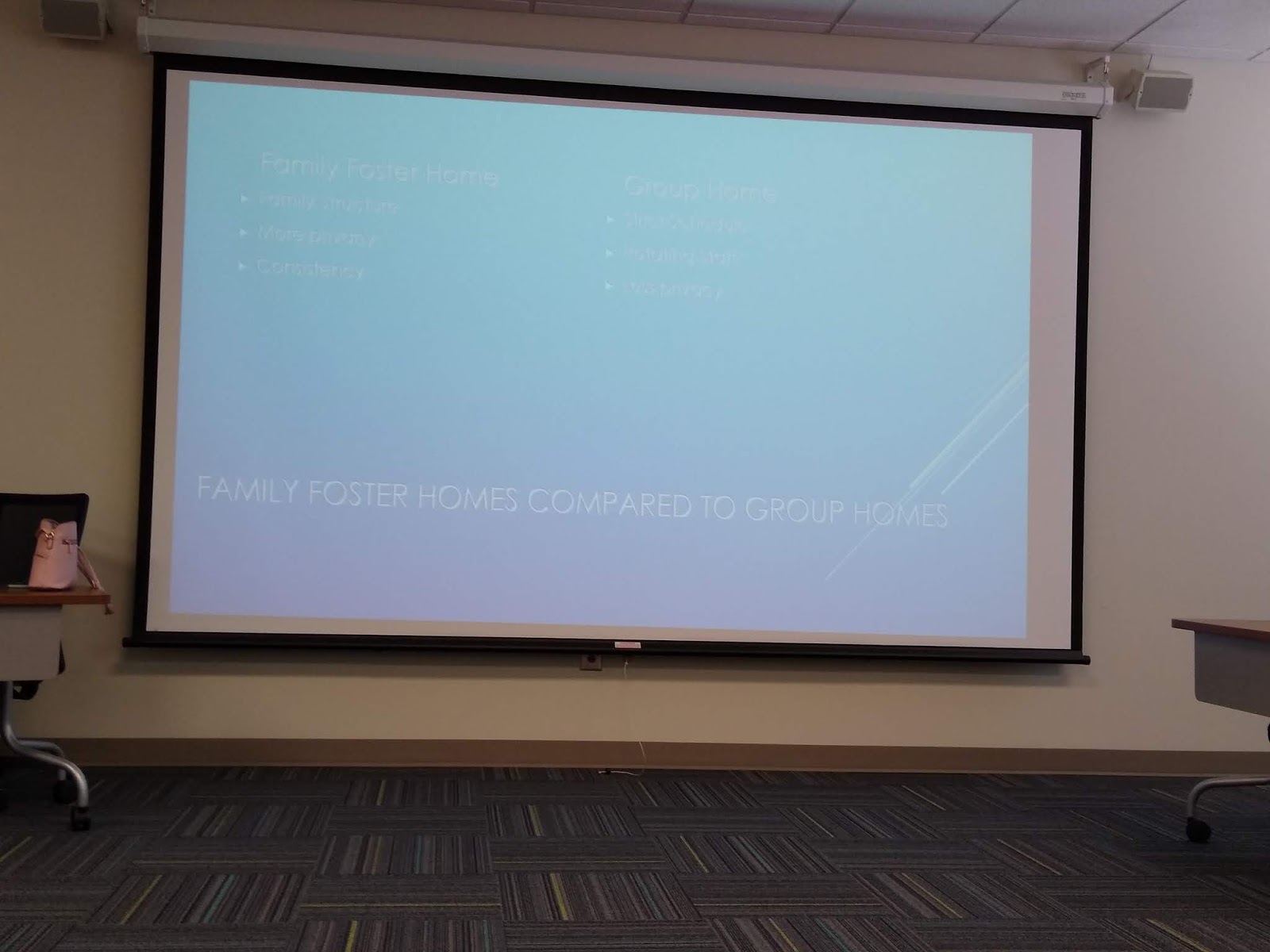
    I recently had the opportunity to help seven undergraduate students prepare for a presentation at a regional conference. These people are some of our best students. Four out of the seven students had slides that looked like this: Slide with white text on a light blue background

    White text on a colored background becomes nearly invisible in our classrooms. It's washed out. Turning off all of the overhead lights doesn't help very much. There is too much ambient light coming in from the windows and an emergency overhead light that cannot be turned off.

    The slides that had black text on a light background had much better visibility. It's a better sensory combination for most classrooms.

    Slide designs and color combinations that look good on your office computer can completely fail during a presentation. The only way to be sure is to test the appearance in the classroom.

  • Posted on

    Note: This was first published on March 20, 2020. It was advice for educators who needed to rapidly move course content online during the COVID pandemic.

    There are several possibilities for adding narration and other forms of multimedia to PowerPoint presentations.

    To begin, the right hardware is needed: A microphone for capturing voice and a webcam for video. Most laptop computers have these features built-in, but some desktops may be lacking this hardware. Webcams that include microphones are inexpensive (about $30) if your computer does not have microphone or video capture capabilities.

    The most basic software option would be to use the presentation recording options in PowerPoint. These can be accessed using the “record slide show” option of the “slide show” tab. When a recording is started, PowerPoint will capture narration plus slide transitions, pen annotations (control-p), and laser pointer effects (control-left mouse button). The resulting multimedia presentation can be saved as a PowerPoint file. Another option is to export the narrated PowerPoint file to video (file > export > video) for sharing.

    The recording and editing features of PowerPoint are limited. Techsmith’s Camtasia offers more powerful options for combining presentations with webcam video and audio. Similarly, OBS Studio is a free, open-source application for capturing and editing multimedia. - Camtasia - OBS Studio

    Adding audio and video to a presentation has a “wow!” factor, but there are some important downsides to consider. Multimedia requires a lot of data, resulting in large files. People with slow or unreliable internet connections could have difficulty accessing these files. If the presentation is shared as a PowerPoint file, the viewer will also need to have PowerPoint software to open the file. This can be problematic because not everyone has this software due to the expense. Finally, the creation of files with audio and video can be technically demanding and labor intensive for the presenter.

  • Posted on

    Note: This was first published on March 16, 2020.

    When moving traditional class content online, it might seem reasonable to simply upload existing PowerPoint presentations to a learning management system and call it a day. However, most PowerPoint presentations are designed to supplement a spoken presentation. The PowerPoint content of most presentations – bullet points of key terms – may not be enough for novice learners.

    One way to overcome this problem is to use the “notes” feature to write short descriptions of the essential ideas from each PowerPoint slide. The aim is to add important information that would ordinarily be spoken. The slides plus notes can then be shared with students by printing the file to a .pdf format (portable document format) for sharing on a learning management system.

    Author view: This is a PowerPoint slide with bullet points and an image.

    Print to pdf: This is the printing view showing the printer (pdf) and slides (notes pages) settings.

    Creating a pdf file for sharing with students is recommended because pdf files are easier to view than PowerPoint files. The hyperlinks to relevant information are preserved in the pdf file.

    There are other possibilities for adding the spoken component to a file that can be shared. The command “record slide show” from the “slide show” tab can capture voice with the slides, which can then be saved and shared. Software applications like Camtasia can add additional multimedia features, such as video. The downsides are that this approach is time-consuming and requires more technical expertise. It can also be problematic for students that don't have access to optimum technology.

    Good luck with your efforts to move course content online!

    I thank Ellen Cotter and Steve Haase for their helpful feedback on this idea.

    Please feel free to save or share the following files that describe this approach.

    Created: March 15, 2020 License: Creative Commons Attribution License 4.0 Gary Fisk, Ph.D., Professor of Psychology, Georgia Southwestern State University Author of Slides for Students, a book about teaching with PowerPoint

  • Posted on

    Note: This was originally published on February 25, 2020.

    Educators and scientists are often confronted with the challenge of information overload. Technical information is a critical part of the presentation, but the amount of information might overwhelm the audience. A solution for these situations is to walk the audience through a complex diagram with a series of on-click animations that direct audience attention to the relevant parts of the slide.

    The following example is a dark adaptation curve that illustrates how sensitivity to low light conditions increases over time. The plot shows a light energy threshold (the smallest amount of light that can be seen) as a function of time. The interpretation of the different plot components is progressively revealed to point out key features.

    Dark adaptation curve with animation to reveal key points (If you're interested in dark adaptation, here is the original PowerPoint file.)

    Some subtle features are worthy of further consideration. This slide has no additional text to interfere with or distract from the graph comprehension. Second, the graph labels are color coded to match the relevant parts of the curve and linked with the arrow. This associates the labels and the relevant parts of the curve via the Gestalt laws of similar and connectedness. Finally, the progression of reveal starts at the beginning of dark adaptation on the left, then follows the changes over time by working towards the right. This sequence follows the natural time course of dark adaptation.

    This carefully direction of attention should (hopefully!) help to make a complex technical figure more accessible to the audience.

    Source: Hecht, S., Haig, C., & Chase, A. M. (1937). The influence of light adaptation on subsequent dark adaptation of the eye. The Journal of General Physiology, 20(6), 831-850.

    License: Creative Commons Attribution 4.0 International