Gary Fisk's Blog

garyfisk

Just another HTMLy user

  • Posted on

    PSPP is a free (cost and licensing) software application that works like SPSS. This software application is used in my introductory-level statistics course.

    At one time, we used SPSS because it was the standard for our field. The key problem was cost: about $6000/year for our 26 computers. A second problem was the restrictive licensing that, when combined with the cost, effectively prevented students from using it anywhere outside of our classroom.

    PSPP has been a good solution for these dilemmas. The cost savings have been tremendous: About $48,000 saved in total so far. The open licensing allows students to use it on their own computers or in computer labs across campus. I supported this effort by creating a tutorial guide called PSPP for Beginners. The University System of Georgia also provided financial support.

    The news is that PSPP for Beginners has been significantly updated. The layout has been improved: topical rather than squential. The appearance is nicer. Videos have been added to demonstrate the look of some operations.

    Please feel free to use PSPP for Beginners for your statistics classes or personal statistical needs.

  • Posted on

    A big challenge for addressing artificial intelligence (AI) in higher education is to clearly communicate what is acceptable or unacceptable uses to the students. There is no traditional model to fall back upon for guidance. Furthermore, our administration has been exceedingly slow at developing AI guidelines, making institutional guidance very slim. Looking externally, there is no clear leader to follow with all of the right answers, plus the technology situation is rapidly changing. Overall, the responsibility seems to fall heavily on individual faculty to find their own way. At least this describes my situation.

    My past efforts at AI policies have, to be completely honest, probably had little benefit. They were too long and too much of a scold.

    I'm sharing my continually evolving policy for 2026 in the hope that it might help other university-level faculty. It's not a perfect solution, of course, but maybe it can be at least a small light in the darkness.

    Permission is granted to use these examples for your own courses.

    The first part is a clarification of the difference between generative AI (example: ChatGPT) and assistive AI (example: Grammarly). Many students think of AI narrowly: all AI is generative AI. This oversimplification may lead to the awkward situation of students using assistive AI when they are asked to not use any AI at all.

    The second part is the traffic light model directly copied from Davis (2024, Table 3.2, p. 25). This divides AI uses into acceptable (green light), risky (yellow light), and unacceptable uses (red light). It's an everyday analogy that students should be able to relate to. Stop, caution, and go might make the judgments less abstract.

    The third part describes the general uses in the course in broad strokes using the traffic light model. This receives further elaboration in assignments go into specific details for each assignment. This specificity was inspired by transparent teaching practices: clearly articulating the course expectations will be helpful to students.

    These policy improvements are tightly focused and avoid lecturing students about their moral obligations.

    Best wishes for your efforts to tame the AI beast in the 2026 classroom!

    Source: Davis, M. (2024). Supporting inclusion in academic integrity in the age of GenAI. Using Generative AI Effectively in Higher Education, editors S. Beckingham, J. Lawrence, S. Powell, and P. Hartley, Routledge Focus, p. 21 – 29. https://doi.org/10.4324/9781003482918-4

  • Posted on

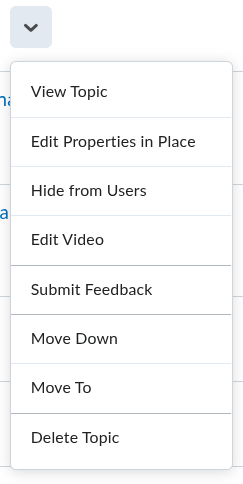
    The Brightspace by D2L learning management system has features for automatically adding captions to an existing video. It's not super obvious though how this feature can be used. Here are the steps.

    1. Use the “edit video” option from the drop-down menu. A screenshot of the drop-down menu for videos. "Edit video" is in the middle of the list.

    2. Choose “advanced editing” from the link at the bottom of the video display. (Some of my videos didn’t display the advanced editing option, but it worked when I uploaded the video file again.) Screenshot of the lower part of the video editing screen that shows an advanced editing link

    3. Click on “closed captions”, then click on “auto-generate.” Patience is needed because the generation process may be slow.

    4. Close the editing window.

    5. Press the “update” button.

  • Posted on

    Conferences often require presenters to share a common computer projection system. These situations raise the potential problem of dead time that occurs when presenters are being switched. The usual solution is that all of the presenters send their PowerPoint files to the panel chair before the session to decrease the loading time. Sometimes the switching doesn't go well though. It's agonizing for the audience and stressful for the presenter to wait while technology issues are worked out.

    The present tip for avoiding this switching dead time pertains to presentations that are delivered online via hyperlinks (uniform resource locators: URL). Some prominent examples are Google's Slides or Canva.

    A friend recently shared an unpleasant presentation experience with a solution. The setting was a class that required students to give presentations at the end of the term. There was a lot of wasted time between presentations as the students copied their PowerPoint files or entered long URLs into a web browser. Fortunately, this student's partner had a clever idea to speed up the transition. Their web-based presentation used a URL shortening service to make their long URL into a small one that could be easily and quickly entered into a web browser. They entered the short URL and were ready to present in just a few seconds.

    What URL shortening does is take a long web link made of mostly random characters and changes it to a much smaller, more user-friendly link. When the short link is used the service immediately redirects to the longer link. This strategy bypasses the need to be handling long and unwieldy links. An example of a URL shortening service is tinyurl.com.

    TLDR: When web-based presentations are given, consider using a URL shortening service to make the link to your presentation easier to enter into public computers.

  • Posted on

    Note: This was first published on January 23, 2025.

    I've recently challenged myself to learn VIM, a text editor popular with computer programmers. One of the biggest obstacles was a feature that automatically truncates the length of lines in text files. You're typing, then the new line is magically (so it seems) started when the typing nears the right margin. This default behavior was quite different from other text editors that I've used. It introduced line breaks that were unwanted. This post was written for new users explains how to turn this feature on or off. The next level of setting default behavior is also explained.

    The command that controls this length is textwidth or tw when abbreviated. To see your current textwidth, use this command. The question at the end provides the current status of a variety of commands.

    :set tw?

    The installed value of gVim (9.1.744) is textwidth=78. This will wrap any text beyond 78 characters by starting a new line. Sometimes this is desirable. However, it can also introduce problems if these line breaks are unwanted. It's important to know how to turn this feature on and off to get the behavior you want.

    Let's say your current value is the default of 78. To turn it completely off, use this command:

    :set tw=0

    Conversely, the automatic breaks can be set back to 78 or whatever the desired length is by specifying a value.

    :set tw=78

    Turning this feature on and off was a big step forward. The default though was always 78. This caused problems because it would start breaking at unexpected times when I didn't remember to reset the value to zero. It was annoying to unexpectedly have a line break, then time was wasted fixing the break.

    The next step to address this problem is change the default configuration. Tracking this down took some significant detective work. Here's how to track it down and change it to off or change it your desired break length.

    This command will reveal the location of the VIM configuration file, _vimrc on Windows.

    :echo $MYVIMRC

    Here's an example response. On my Windows PC, the default location is:

    C:\Program Files\Vim\_vimrc

    Setting textwidth in this configuration file is not enough though, contrary to what some online discussions might suggest. The plot runs deeper. The top of the _vimrc file contains a reference to another file. Here's the relevant part of _vimrc.

    " Vim with all enhancements

    source $VIMRUNTIME/vimrc_example.vim

    On my PC, this file is located in C:\Program Files\Vim\vim91\vimrc_example.vim. This second configuration file contains some enhancements that beginners might find useful or attractive. Here's the critical command from this example configuration file.

    " For all text files set 'textwidth' to 78 characters.

    autocmd FileType text setlocal textwidth=78

    This understanding - two configuration files - can lead to a couple of options for changing the default behavior. One possibility is to comment out the reference to vimrc_example.vim in the _vimrc file and add tw=0. This works, but it also causes some possibly desirable default behaviors from the example file to be lost. Another solution is to change the textwidth=78 command in the vimrc_example.vim file to zero or the desired value. This is what I opted to do. Another possibility would be to copy the desired parts of the example file to _vimrc and then remove the reference to the example file. This might be the most elegant solution.

    I hope this detective work will be useful for some VIM beginner who is stumped, like I was.

  • Posted on

    Note: This was first published on January 23, 2025.

    I've recently challenged myself to learn VIM, a text editor popular with computer programmers. One of the biggest obstacles was a feature that automatically truncates the length of lines in text files. You're typing, then the new line is magically (so it seems) started when the typing nears the right margin. This default behavior was quite different from other text editors that I've used. It introduced line breaks that were unwanted. This post was written for new users explains how to turn this feature on or off. The next level of setting default behavior is also explained.

    The command that controls this length is textwidth or tw when abbreviated. To see your current textwidth, use this command. The question at the end provides the current status of a variety of commands.

    :set tw?

    The installed value of gVim (9.1.744) is textwidth=78. This will wrap any text beyond 78 characters by starting a new line. Sometimes this is desirable. However, it can also introduce problems if these line breaks are unwanted. It's important to know how to turn this feature on and off to get the behavior you want.

    Let's say your current value is the default of 78. To turn it completely off, use this command:

    :set tw=0

    Conversely, the automatic breaks can be set back to 78 or whatever the desired length is by specifying a value.

    :set tw=78

    Turning this feature on and off was a big step forward. The default though was always 78. This caused problems because it would start breaking at unexpected times when I didn't remember to reset the value to zero. It was annoying to unexpectedly have a line break, then time was wasted fixing the break.

    The next step to address this problem is change the default configuration. Tracking this down took some significant detective work. Here's how to track it down and change it to off or change it your desired break length.

    This command will reveal the location of the VIM configuration file, _vimrc on Windows.

    :echo $MYVIMRC

    Here's an example response. On my Windows PC, the default location is:

    C:\Program Files\Vim\_vimrc

    Setting textwidth in this configuration file is not enough though, contrary to what some online discussions might suggest. The plot runs deeper. The top of the _vimrc file contains a reference to another file. Here's the relevant part of _vimrc.

    " Vim with all enhancements

    source $VIMRUNTIME/vimrc_example.vim

    On my PC, this file is located in C:\Program Files\Vim\vim91\vimrc_example.vim. This second configuration file contains some enhancements that beginners might find useful or attractive. Here's the critical command from this example configuration file.

    " For all text files set 'textwidth' to 78 characters.

    autocmd FileType text setlocal textwidth=78

    This understanding - two configuration files - can lead to a couple of options for changing the default behavior. One possibility is to comment out the reference to vimrc_example.vim in the _vimrc file and add tw=0. This works, but it also causes some possibly desirable default behaviors from the example file to be lost. Another solution is to change the textwidth=78 command in the vimrc_example.vim file to zero or the desired value. This is what I opted to do. Another possibility would be to copy the desired parts of the example file to _vimrc and then remove the reference to the example file. This might be the most elegant solution.

    I hope this detective work will be useful for some VIM beginner who is stumped, like I was.

  • Posted on

    Note: This was first published on July 17, 2024.

    During the pandemic I was confronted with the challenge of providing statistics software to students who had a wide range of hardware and software. Using statistics software installed on computers in the lab just wasn't an option for everyone. My solution was to code some web-based statistics calculators for basic introductory statistics needs: Descriptive statistics, t-tests, etc. These will work well even for extreme situations: on smartphones and for people who have weak internet connections.

    My web-based statistics tools for introductory statistics classes have just been updated. Z-tests, t-tests, ANOVA, and chi-squared can now provide exact p values.

    These aren't really intended to replace SPSS, R, JASP, and other professional-grade statistics software. Possible uses are classroom demonstrations or online instruction. There are also some practice pages that will give students data to work with, then provide an answer when students are ready.

    These resources are educator friendly. There are no ads, unlike some horrible online calculators. CC licensing allows for free sharing and use, making these an open education resource (OER).

    https://garyfisk.com/stats/index.html

  • Posted on

    Note: This was first published on May 13, 2024.

    Asking students to write in college courses has been a long-time educational strategy. Writing a summary shows that the assigned work has been read. Paraphrasing is to express information and ideas in our own voice, thereby putting a personal stamp on what has been read. Higher order thinking is (hopefully) accomplished via applications, analysis, and similar cognitive operations. Altogether, written assignments can be described as a write-to-learn strategy.

    New advances in generative artificial intelligence (AI) have raised questions about the value of these traditional approaches.

    Summarizing written work can now easily be done by AI systems. Student submissions are increasingly well-done, but bland AI summaries. These are often just vague overviews. A request to summarize no longer demonstrates that the student read anything. Maybe this isn't entirely new, but it seems to be an increasing problem in the last year and a half.

    Paraphrasing is also losing value as an educational tool. Here's two new tools that recently surpised me. Microsoft Copilot (through the Edge browser) offers "rewrite with copilot" for text pasted into a learning management system. Likewise, Google has a "help me write" option. Two screenshots are shown below. Screenshot of Google's 'help me write' command on a pop-up menu

    Screenshot of Microsoft Pilot offering to rewrite text

    This will be a mixed bag. The feedback may be helpful. The downside though is that this may be the beginning of a deskilling of writing.

  • Posted on

    Note: This was first published on October 20, 2023.

    Complex figures can be overwhelming to an audience. The issue: where should one begin? A similar problem is describing processes that have multiple steps. A numbered list of the stages could be made, but lists tend to be boring.

    A solution is to use basic "appear" animations to make the steps of the process appear in a sequence. This helps the audience to digest the complexity. The presentation of stages one-by-one feels more intuitive.

    The following link has an example that shows both a complex image and a step relationship. This is the Wernicke-Geschwind Model of language processing. The graphic is an open-license illustration of the brain with key brain areas highlighted. The animation steps the audience through the key stages of processing language.

    WernickeGeschwindLanguageModel.pptx

    License: Creative Commons 4.0 attribution

  • Posted on

    Note: This was first published on October 20, 2021.

    PowerPoint has a special screen for presenters that shows the slides plus a variety of control buttons and a clock. Accessing this feature requires an extended screen setting. Unfortunately, the concept of an extended screen is difficult to understand and explain. This confusion is understandable because the extended screen is invisible!

    The following is an explanation of the difference between duplicate vs. extended screens.

    The duplicate setting shows the same presentation on the presenter’s computer and the audience’s screen. Duplicate could be understood as the standard mode of operation. Duplicate screen illustration: The computer and audience views are the same.

    Think of the extended screen as being an imaginary monitor positioned just to the right of the computer display. Presenters can move windows (see video in green) to the extended view by dragging them to the right, from the computer desktop to the invisible extended display. Extended screens can be understood as an enhanced display space just for the audience. The extended screen is an imaginary screen located to the right of the computer display. Diagram that illustrates how the extended screen works